
Build a Bicycle tap Game in React Native Part 5: Game Logic
Previous: Build a Bicycle tap Game in React Native Part 4: Game Movement
This section explains how game logic is structured using a centralized state machine to control when the simulation runs, pauses, and ends. It covers introducing explicit game states to prevent automatic start, gating frame-based updates through state checks, and synchronizing animations with gameplay transitions. It also details how pause, win, and lose conditions are detected in world space and handled consistently through state changes. The focus is on keeping all gameplay rules in one place, allowing the UI to simply reflect the current state while the frame loop drives progression.
Game State
At this point, the simulation runs as soon as the app loads, which isn’t ideal for a game. We need a way to control when the game actually starts, instead of having movement and animations begin immediately.
To solve this, we introduce a minimal game state that lets us pause the simulation on load and start it explicitly via a Start button. This section adds a simple state machine with two states: READY and RUNNING:
1type GameStateType = "READY" | "RUNNING";- READY: the game is idle (no movement updates, overlay visible)
- RUNNING: the game is active (movement updates, overlay hidden)
Define game state and animation refs
We store the state in a Reanimated shared value so it can be read directly inside useFrameCallback and animated styles, without React re-renders.
1const monsterRef = useRef<Dotlottie>(null);
2const gameState = useSharedValue<GameStateType>("READY");
The monster animation is controlled imperatively via a ref, so it can start exactly when the game starts.
Gate movement updates with game state
Movement should only run when the game is in RUNNING. The frame loop is gated by the current state:
1useFrameCallback(() => {
2  if (gameState.value !== "RUNNING") return;
3
4  monsterPosition.value++;
5  characterPosition.value += characterSpeed.value;
6});
This keeps the simulation control centralized: flipping gameState is enough to start or stop movement.
Start the game (explicit control)
To prevent the game from starting automatically, the monster animation is first configured not to autoplay. This ensures that nothing moves or animates until the player explicitly starts the game.
1<DotLottie
2  ref={monsterRef} // add the monsterRef to control the animation
3  source={require("./assets/monster.lottie")}
4  style={{
5      width: MONSTER_SIZE,
6      height: MONSTER_SIZE,
7   }}
8   loop
9   autoplay={false} // set should be false to prevent auto-start
10/>
With autoplay disabled, the monster remains idle while the game is in the READY state.
We then define a startGame function that explicitly starts the simulation:
1const startGame = () => {
2  gameState.value = "RUNNING";
3  monsterRef.current?.play();
4};
When the player presses the Start button:
- the game state switches from READY to RUNNING
- the frame loop becomes active
- the monster animation starts playing
This makes the start of the game intentional and predictable, with gameplay and animation beginning at the exact same moment.
Add a style to show/hide the gamestart overlay
The overlay should be visible and interactive in READY, and fully disabled during RUNNING. This is handled with an animated style:
1const startOverlayStyle = useAnimatedStyle(() => ({
2   display: gameState.value === "READY" ? "flex" : "none"
3}));
display: controls the appearance of the element.
Render the play overlay
1<Animated.View
2  style={[
3    {
4      position: "absolute",
5      inset: 0,
6      backgroundColor: "#00000062",
7      alignItems: "center",
8      justifyContent: "center",
9    },
10    startOverlayStyle,
11  ]}
12>
13  <FontAwesome5
14    name="play"
15    size={160}
16    color="yellow"
17    onPress={startGame}
18  />
19</Animated.View>
This creates a clean "start screen" that:
- blocks gameplay input while in READY
- disappears automatically once the game enters RUNNING
Pause, Win, and Lose conditions
Now that the game can start explicitly, we can extend the state machine to support pausing and end conditions. The goal is to keep all rules centralized in one place: the frame loop decides what happens, and the UI simply reflects the current gameState.
Pause
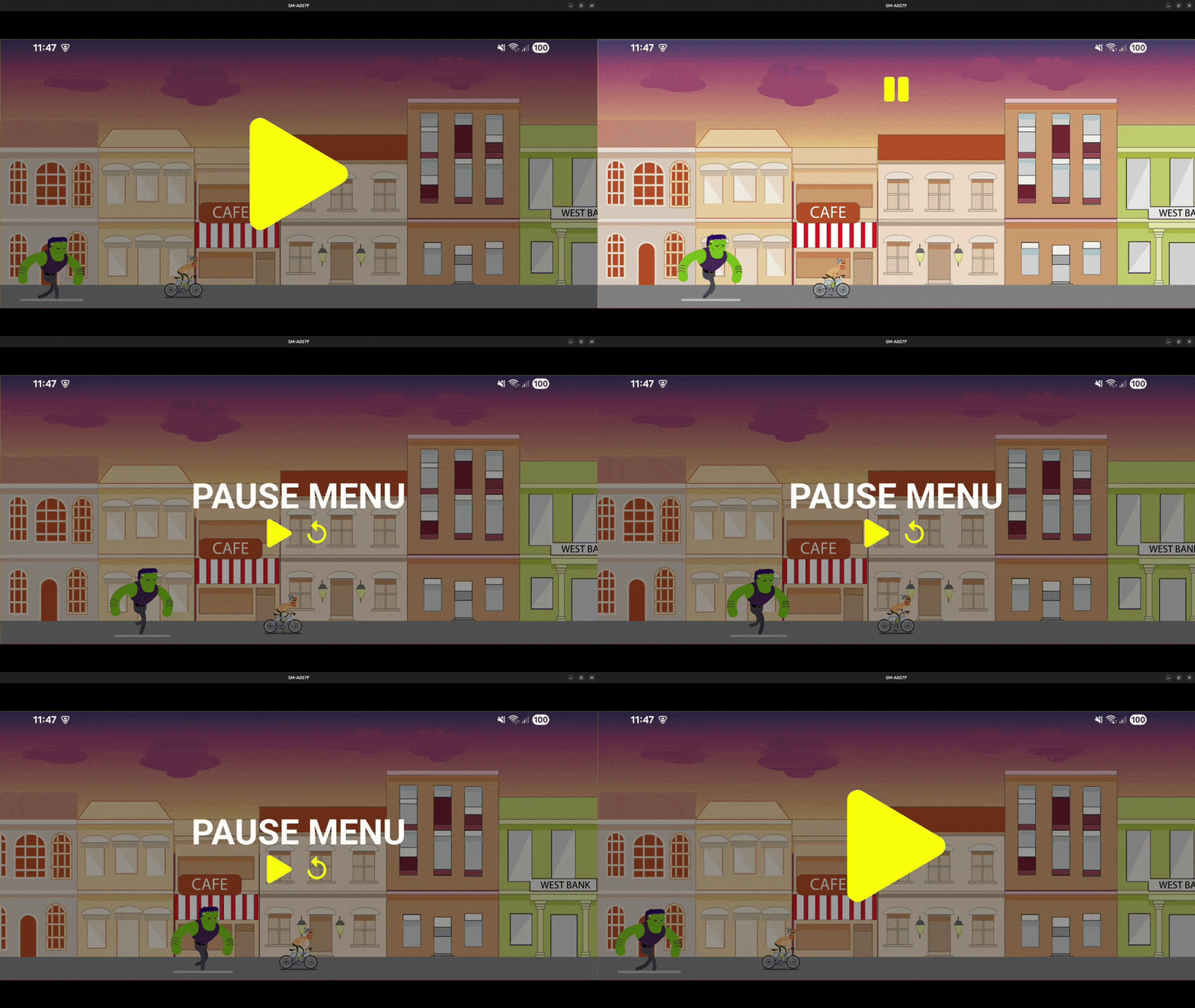
Once the game can start and run, the next step is to let the player pause, resume, or restart at any time. We do this by extending the game state and rendering two UI layers:
- a pause button that only appears while running
- a pause menu overlay that only appears while paused
Extend the game state
1type GameStateType = "READY" | "RUNNING" | "PAUSED";Pause, resume, and restart actions
Pausing switches the state to PAUSED and pauses animations immediately:
1const pauseGame = () => {
2  gameState.value = "PAUSED";
3  monsterRef.current?.pause();
4  characterRef.current?.pause();
5};
Resuming switches back to RUNNING, plays the monster animation, and only plays the character animation if it was moving:
1const resumeGame = () => {
2  gameState.value = "RUNNING";
3  monsterRef.current?.play();
4  if (characterSpeed.value > 0) characterRef.current?.play();
5};
Restarting resets positions, stops animations, and returns to READY:
1const restartGame = () => {
2  characterPosition.value = CHARACTER_INITIAL_POSITION;
3  characterSpeed.value = 0;
4  monsterPosition.value = MONSTER_INITIAL_POSITION;
5  gameState.value = "READY";
6  monsterRef.current?.stop();
7  characterRef.current?.stop();
8};
Show/hide pause UI with animated styles
We use the same pattern as the start overlay
This keeps UI layers mounted but makes them visible and interactive only in the correct state.
Pause button (only when running):
1const pauseButtonStyle = useAnimatedStyle(() => ({
2  display: gameState.value === "RUNNING" ? "flex" : "none",
3}));
Pause menu (only when paused):
1const pauseMenuStyle = useAnimatedStyle(() => ({
2  display: gameState.value === "PAUSED" ? "flex" : "none",
3}));
Render the pause button and pause menu
Pause button (top center):
1<Animated.View
2  style={[
3    {
4      position: "absolute",
5      left: "50%",
6      top: 50,
7      transform: [{ translateX: "-50%" }],
8      flexDirection: "row",
9    },
10    pauseButtonStyle,
11  ]}
12>
13  <FontAwesome5 name="pause" size={40} color="yellow" onPress={pauseGame} />
14</Animated.View>
Pause menu overlay (full screen):
1<Animated.View
2  style={[
3    {
4      position: "absolute",
5      inset: 0,
6      backgroundColor: "#00000062",
7      alignItems: "center",
8      justifyContent: "center",
9    },
10    pauseMenuStyle,
11  ]}
12>
13  <Text style={{ color: "white", fontSize: 50, fontWeight: 700 }}>
14    PAUSE MENU
15  </Text>
16
17  <View style={{ gap: 16, flexDirection: "row" }}>
18    <FontAwesome5 name="play" size={40} color="yellow" onPress={resumeGame} />
19    <MaterialIcons name="replay" size={40} color="yellow" onPress={restartGame} />
20  </View>
21</Animated.View>
Key takeaway
- PAUSED is just another game state, controlled the same way as READY and RUNNING.
- The pause button and pause menu are always mounted, but only visible + clickable in the appropriate state.
- Resume logic is careful to restart only the animations that should be active (monster always, character only if speed > 0).
Win
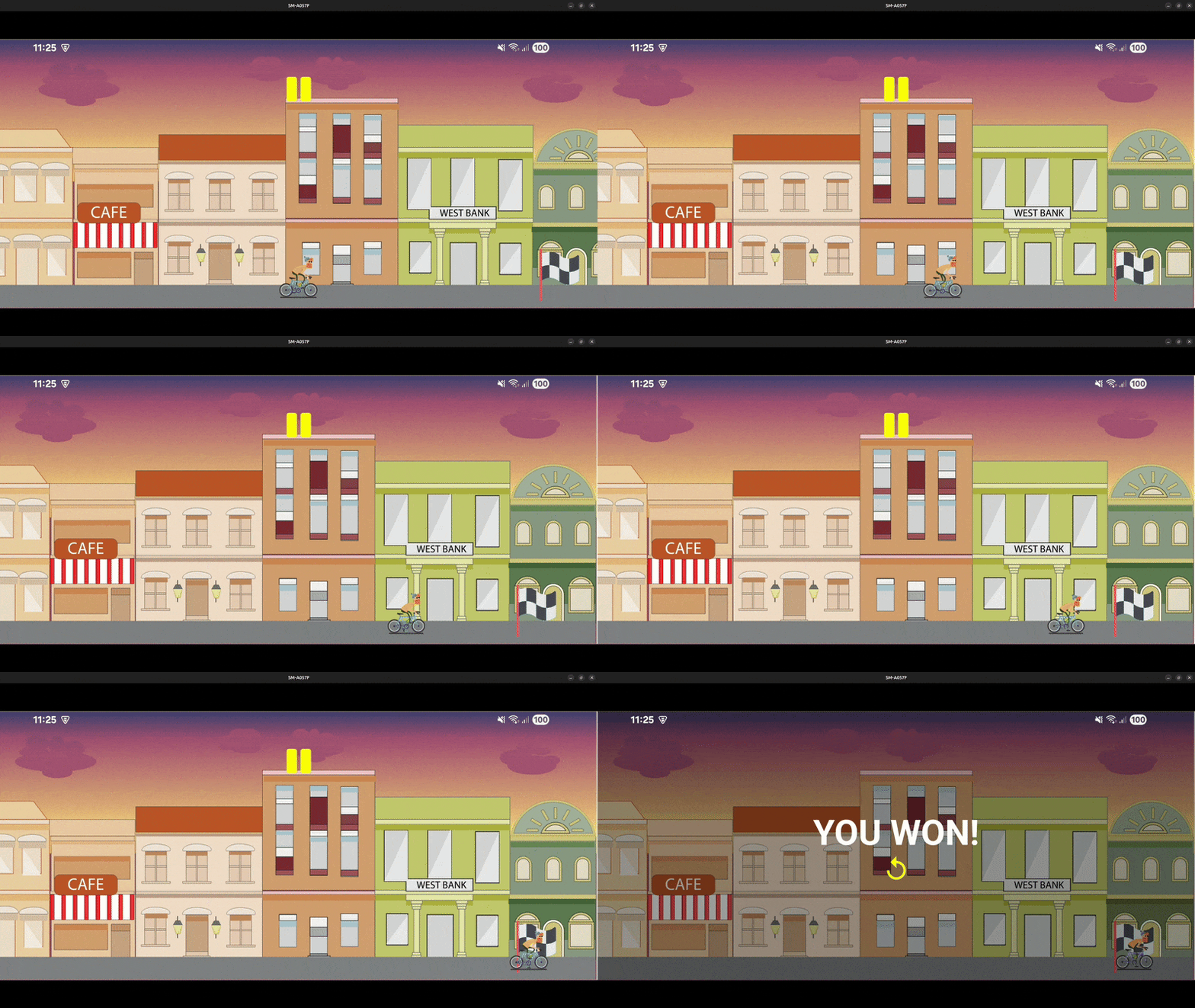
To add a win condition, we introduce a new game state (WON) and detect when the character reaches the flag position at the end of the world. Once the win condition is met, we freeze gameplay by pausing both Lottie animations and showing a win overlay.
Extend the game state
1type GameStateType = "READY" | "RUNNING" | "PAUSED" | "WON";Reusable helper: pause Lottie animations
We’ll use a small helper to freeze both animated entities consistently:
1const pauseLotties = () => {
2  monsterRef.current?.pause();
3  characterRef.current?.pause();
4};
We also reuse this in pauseGame to keep behavior consistent:
1const pauseGame = () => {
2  gameState.value = "PAUSED";
3  pauseLotties();
4};
Detect the win condition inside the frame loop
The win condition is checked in world space: if the character reaches the end-of-world flag position, we switch to WON and stop updating movement.
1useFrameCallback(() => {
2  if (gameState.value !== "RUNNING") return;
3
4  if (characterPosition.value >= worldWidth - FLAG_OFFSET - FLAG_SIZE) {
5    gameState.value = "WON";
6    return;
7  }
8
9  monsterPosition.value++;
10  characterPosition.value += characterSpeed.value;
11});
This keeps all gameplay progression in one place: the frame loop advances the simulation and decides when the game ends.
Pause animations when entering WON
State changes happen on the UI thread, but pausing the Lottie refs must happen on the React Native side. We listen for state transitions using useAnimatedReaction and schedule the pause on RN:
1useAnimatedReaction(
2  () => gameState.value,
3  (value, previous) => {
4    if (value === previous) return;
5    if (value === "WON") scheduleOnRN(pauseLotties);
6  },
7);
This guarantees that when the game switches to WON, animations stop immediately and the scene visually "freezes" in its final position.
Show the win overlay
Just like the pause menu, the win overlay uses display so it becomes visible only when the state is WON:
1const winOverlayStyle = useAnimatedStyle(() => ({
2  display: gameState.value === "WON" ? "flex" : "none"
3}));1<Animated.View
2 style={[
3 {
4 position: "absolute",
5 inset: 0,
6 backgroundColor: "#00000062",
7 alignItems: "center",
8 justifyContent: "center",
9 },
10 winOverlayStyle,
11 ]}
12>
13 <Text style={{ color: "white", fontSize: 50, fontWeight: 700 }}>
14 YOU WON!
15 </Text>
16
17 <View style={{ flexDirection: "row" }}>
18 <MaterialIcons name="replay" size={40} color="yellow" onPress={restartGame} />
19 </View>
20</Animated.View>Key takeaway
- The win condition is checked in world coordinates inside the frame loop.
- Switching to WON stops simulation updates (because RUNNING is required to progress).
- useAnimatedReaction is used to respond to the state transition and pause Lottie animations safely.
- The win screen is just another overlay controlled by game state.
Lose
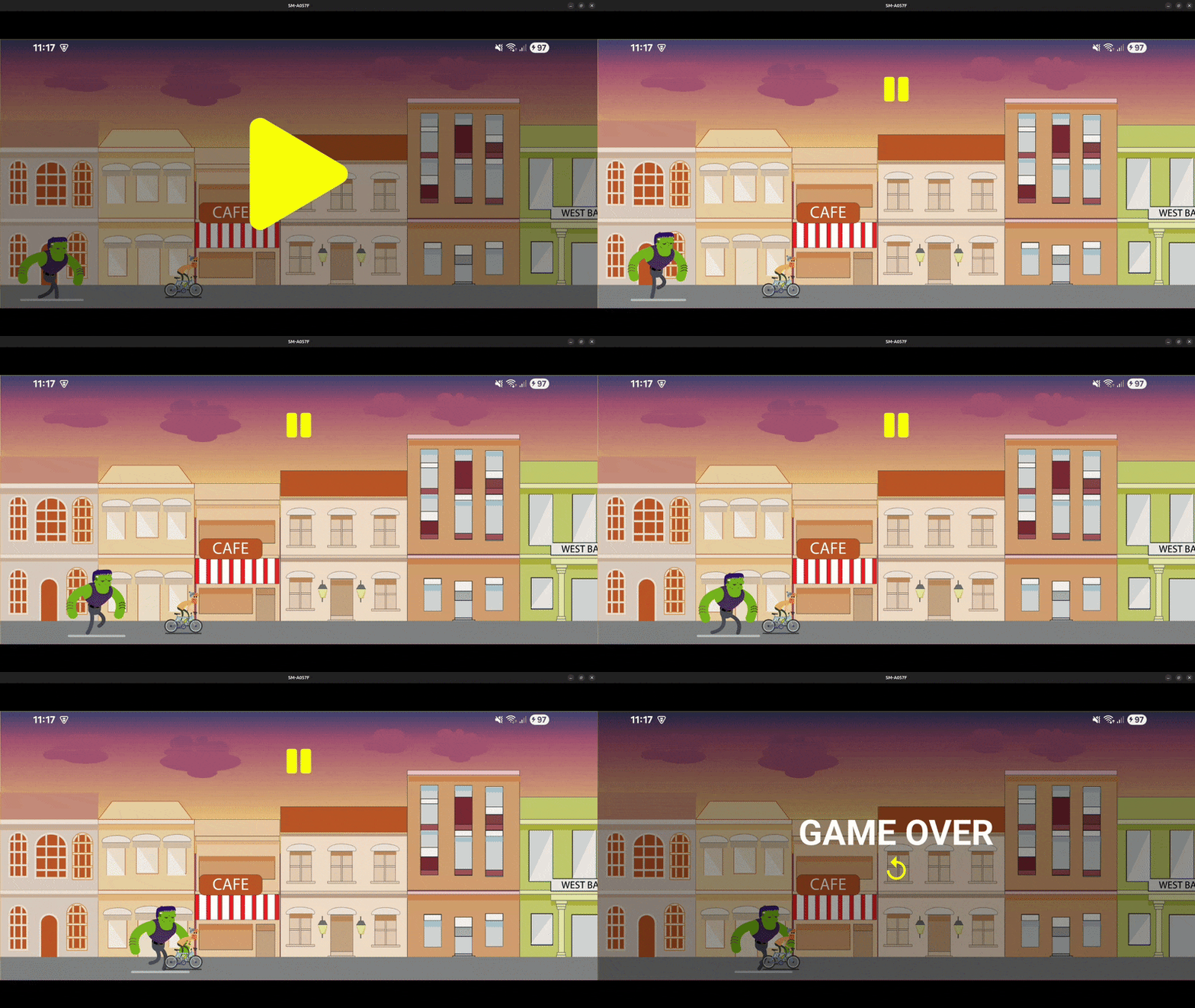
To complete the game loop, we add a lose condition with a new state: OVER. The idea is simple: if the monster catches up to the character, the game ends, animations freeze, and a "Game Over" overlay appears.
Extend the game state
1type GameStateType = "READY" | "RUNNING" | "PAUSED" | "WON" | "OVER";Detect the lose condition inside the frame loop
Just like the win check, the lose condition is evaluated inside useFrameCallback while the game is running.
1useFrameCallback(() => {
2  if (gameState.value !== "RUNNING") return;
3
4  // Win
5  if (characterPosition.value >= worldWidth - FLAG_OFFSET - FLAG_SIZE) {
6    gameState.value = "WON";
7    return;
8  }
9
10  // Lose (monster catches the character)
11  if (monsterPosition.value >= characterPosition.value - CHARACTER_SIZE / 2) {
12    gameState.value = "OVER";
13    return;
14  }
15
16  // Continue simulation
17  monsterPosition.value++;
18  characterPosition.value += characterSpeed.value;
19});
The lose rule here is a minimal overlap check in world space:
- the monster advances forward each frame
- once it reaches the character’s trailing edge (approximated by CHARACTER_SIZE / 2), the game switches to OVER
Freeze animations on end states (WON or OVER)
We reuse the same reaction mechanism to pause Lottie animations when the game ends whether by winning or losing:
1useAnimatedReaction(
2  () => gameState.value,
3  (value, previous) => {
4    if (value === previous) return;
5    if (value === "WON" || value === "OVER") scheduleOnRN(pauseLotties);
6  },
7);
This ensures the final frame stays visible and the scene "locks" immediately.
Show the lose overlay
The lose screen is another overlay controlled by the game state:
1const loseOverlayStyle = useAnimatedStyle(() => ({
2  display: gameState.value === "OVER" ? "flex" : "none",
3}));1<Animated.View
2 style={[
3 {
4 position: "absolute",
5 inset: 0,
6 backgroundColor: "#00000062",
7 alignItems: "center",
8 justifyContent: "center",
9 },
10 loseOverlayStyle,
11 ]}
12>
13 <Text style={{ color: "white", fontSize: 50, fontWeight: 700 }}>
14 GAME OVER
15 </Text>
16
17 <View style={{ flexDirection: "row" }}>
18 <MaterialIcons name="replay" size={40} color="yellow" onPress={restartGame} />
19 </View>
20</Animated.View>Refactoring
At first, the UI states (Pause, Win, Lose, Start) are often implemented as separate full-screen overlays. Each state gets its own <Animated.View> that covers the screen, with the same styling repeated every time:
- position: "absolute"
- inset: 0
- dark background
- centered layout
This works, but the duplication becomes painful fast. Any visual tweak (overlay color, alignment, spacing, font sizing) has to be applied in four places.
The cleaner approach is to keep one shared overlay container and make the content inside it depend on gameState.
Step 1: Keep a single "overlay wrapper"
Instead of rendering multiple screen-sized overlays, render only one wrapper that appears whenever the game isn’t running:
1const overlayStyle = useAnimatedStyle(() => ({
2  display: gameState.value === "RUNNING" ? "none" : "flex",
3}));
This wrapper becomes the "UI layer" for all non-running states.
Step 2: Add small styles for each state’s content
Now define tiny visibility styles for the pieces inside the overlay:
1const pauseStyle = useAnimatedStyle(() => ({
2  display: gameState.value === "PAUSED" ? "flex" : "none",
3}));
4
5const winStyle = useAnimatedStyle(() => ({
6  display: gameState.value === "WON" ? "flex" : "none",
7}));
8
9const loseStyle = useAnimatedStyle(() => ({
10  display: gameState.value === "OVER" ? "flex" : "none",
11}));
12
13const startStyle = useAnimatedStyle(() => ({
14  display: gameState.value === "READY" ? "flex" : "none",
15}));
16
17const replayStyle = useAnimatedStyle(() => ({
18  display: gameState.value === "READY" ? "none" : "flex",
19}));
This keeps the logic readable:
- Pause state shows pause text + resume button
- Win state shows "You won!" + replay
- Lose state shows "Game over" + replay
- Ready state shows big play button only
Step 3: Render everything once, toggle visibility per state
Now your overlay UI becomes one component with stable structure:
1<Animated.View
2  style={[
3    {
4      position: "absolute",
5      inset: 0,
6      backgroundColor: "#00000062",
7      alignItems: "center",
8      justifyContent: "center",
9    },
10    overlayStyle,
11  ]}
12>
13  <Animated.Text style={[{ color: "white", fontSize: 50, fontWeight: 700 }, pauseStyle]}>
14    PAUSE MENU
15  </Animated.Text>
16
17  <Animated.Text style={[{ color: "white", fontSize: 50, fontWeight: 700 }, winStyle]}>
18    YOU WON!
19  </Animated.Text>
20
21  <Animated.Text style={[{ color: "white", fontSize: 50, fontWeight: 700 }, loseStyle]}>
22    GAME OVER
23  </Animated.Text>
24
25  <View style={{ gap: 16, flexDirection: "row" }}>
26    <Animated.View style={pauseStyle}>
27      <FontAwesome5 name="play" size={40} color="yellow" onPress={resumeGame} />
28    </Animated.View>
29
30    <Animated.View style={replayStyle}>
31      <MaterialIcons name="replay" size={40} color="yellow" onPress={restartGame} />
32    </Animated.View>
33  </View>
34
35  <Animated.View style={startStyle}>
36    <FontAwesome5 name="play" size={160} color="yellow" onPress={startGame} />
37  </Animated.View>
38</Animated.View>
Why this refactor is worth it
Less duplication: The overlay container styling exists once.
Easier maintenance: Update the overlay look (background, padding, typography) in one place.
State-driven UI: Instead of “render a whole new overlay,” you’re expressing:
- "show this piece when we’re paused"
- "show this piece when we won"
- "show this piece when we lost"
That’s a much cleaner mental model for game UI.
Key takeaway
- The lose condition is evaluated in world coordinates inside the frame loop.
- Switching to OVER immediately stops the simulation (because updates only run in RUNNING).
- A single useAnimatedReaction handles freezing animations for both end states.
- The lose overlay follows the same pattern as pause and win.
Next: Build a Bicycle tap Game in React Native Part 6: Game Menu